> ## Documentation Index
> Fetch the complete documentation index at: https://docs.getseam.ai/llms.txt
> Use this file to discover all available pages before exploring further.
# Apollo.io
> Quick guide to connecting Apollo.io as a destination.
Seam connects to Apollo.io using an Apollo API key. This connection enables you to sync Seam audiences to Apollo sequences for automated outbound campaigns.
We require one value to connect Apollo.io to Seam:
* Apollo API Key (Master Key)
## Step 1: Generate an Apollo API Key
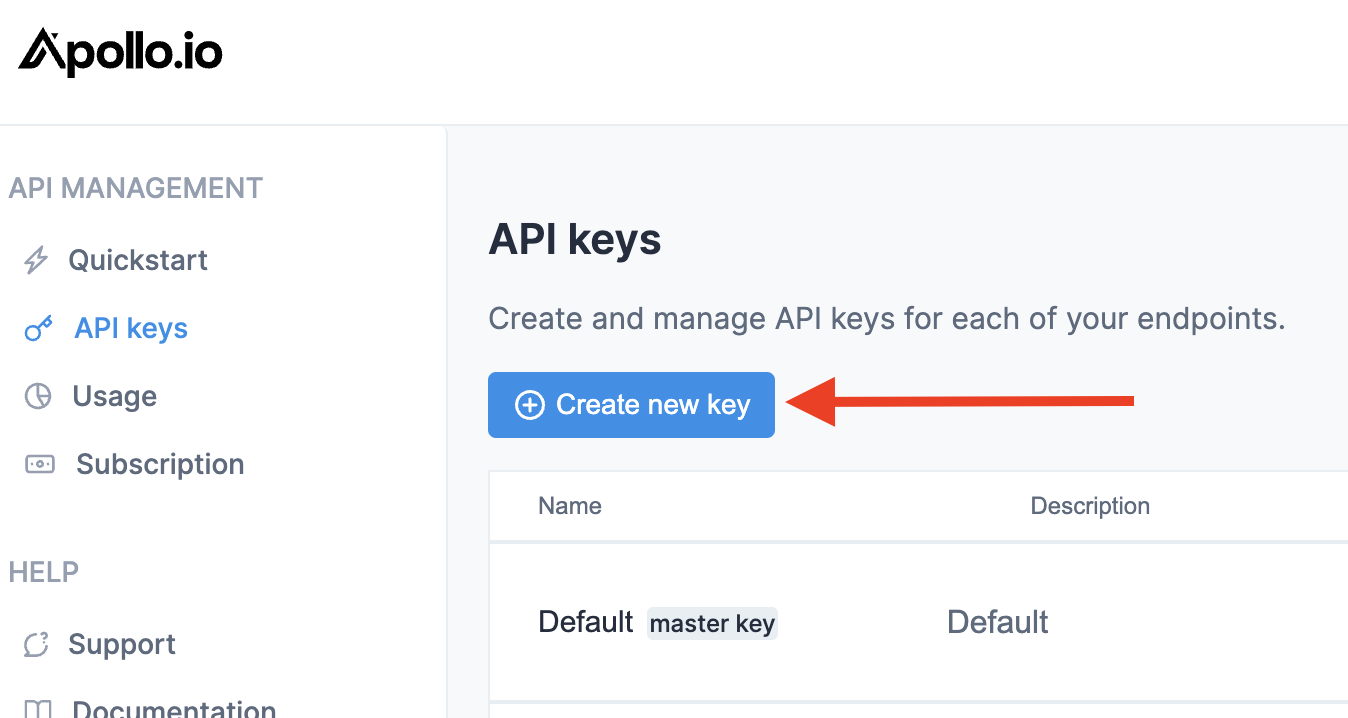
1. Log into your Apollo account and navigate to the [developer console](https://developer.apollo.io/keys/).
2. Click **Create new key**.
 ## Step 2: Configure as Master Key
Ensure the API key is created as a **master key** by toggling the switch at the bottom to the enabled position (it should appear blue).
## Step 2: Configure as Master Key
Ensure the API key is created as a **master key** by toggling the switch at the bottom to the enabled position (it should appear blue).
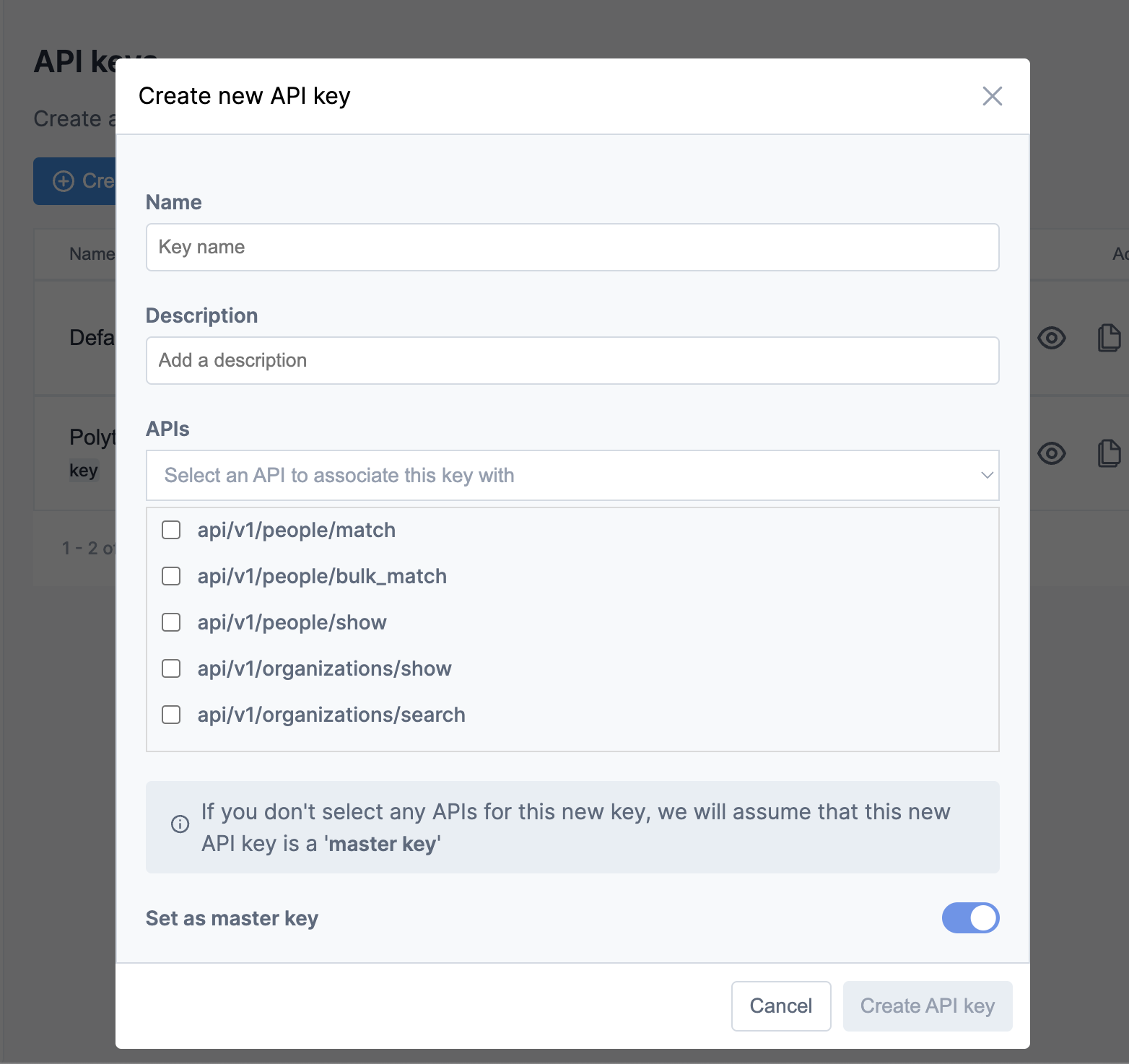 Master key access is required for Seam to write data to Apollo, including syncing contacts to sequences and creating new contacts.
## Step 3: Connect Apollo in Seam
1. In Seam, navigate to **Settings → Connections**.
2. Find **Apollo.io** in the connections list and click **Connect**.
3. Paste your Apollo API key into the connection field.
4. Click **Save**.
Master key access is required for Seam to write data to Apollo, including syncing contacts to sequences and creating new contacts.
## Step 3: Connect Apollo in Seam
1. In Seam, navigate to **Settings → Connections**.
2. Find **Apollo.io** in the connections list and click **Connect**.
3. Paste your Apollo API key into the connection field.
4. Click **Save**.
 ## What Gets Synced
**To Apollo (Destination):**
* Seam audiences can be synced as contacts in Apollo
* Deploy contacts to Apollo sequences for automated outreach
* Create or update Accounts and Contacts
## Using Apollo in Plays
When configuring a play, you can deploy Seam audiences to Apollo sequences for automated outbound campaigns. This enables you to:
* Automatically sync high-value contacts to specific Apollo sequences
* Auto-create contacts in Apollo if they don't already exist before adding them to sequences
## Advanced Configuration
### Sequence Management Settings
When syncing contacts to Apollo sequences, you have several options to control behavior:
**Multiple Sequence Enrollment.**
By default, Seam will not add contacts to a sequence if they are:
* Already part of another active sequence
* Were previously part of the target sequence
To allow contacts to be added to multiple sequences simultaneously, enable the **Allow multiple sequence enrollment** option in your sync's advanced settings.
**Contact Volume Limits.**
You can limit the number of contacts Seam adds to a sequence per sync run or per day. This helps manage outreach volume and stay within your Apollo sending limits. Configure this in the sync's advanced settings.
### Sender Email Configuration
When syncing contacts to Apollo sequences, you must specify a **From Email Address** for each contact. This email address must:
* Be linked to a user in your Apollo account
* Have proper email authentication configured
* Be verified in Apollo's admin console
You can use Seam's custom field mapping to assign sender emails based on account ownership, territory, or other criteria in your data model.
## Troubleshooting
**Sync Warnings.**
Contacts that cannot be added to a sequence will appear in the Warnings section of your sync history. Common reasons include:
* Contact is already in an active sequence (if multiple sequence enrollment is disabled)
* Contact was previously in the target sequence
* Invalid or missing required fields
* API rate limits exceeded
**Rate Limit Considerations.**
If your Apollo syncs are running slowly or timing out, you may be hitting API rate limits. Contact Apollo support to request an increase, or adjust your sync schedule to spread operations throughout the day.
## What Gets Synced
**To Apollo (Destination):**
* Seam audiences can be synced as contacts in Apollo
* Deploy contacts to Apollo sequences for automated outreach
* Create or update Accounts and Contacts
## Using Apollo in Plays
When configuring a play, you can deploy Seam audiences to Apollo sequences for automated outbound campaigns. This enables you to:
* Automatically sync high-value contacts to specific Apollo sequences
* Auto-create contacts in Apollo if they don't already exist before adding them to sequences
## Advanced Configuration
### Sequence Management Settings
When syncing contacts to Apollo sequences, you have several options to control behavior:
**Multiple Sequence Enrollment.**
By default, Seam will not add contacts to a sequence if they are:
* Already part of another active sequence
* Were previously part of the target sequence
To allow contacts to be added to multiple sequences simultaneously, enable the **Allow multiple sequence enrollment** option in your sync's advanced settings.
**Contact Volume Limits.**
You can limit the number of contacts Seam adds to a sequence per sync run or per day. This helps manage outreach volume and stay within your Apollo sending limits. Configure this in the sync's advanced settings.
### Sender Email Configuration
When syncing contacts to Apollo sequences, you must specify a **From Email Address** for each contact. This email address must:
* Be linked to a user in your Apollo account
* Have proper email authentication configured
* Be verified in Apollo's admin console
You can use Seam's custom field mapping to assign sender emails based on account ownership, territory, or other criteria in your data model.
## Troubleshooting
**Sync Warnings.**
Contacts that cannot be added to a sequence will appear in the Warnings section of your sync history. Common reasons include:
* Contact is already in an active sequence (if multiple sequence enrollment is disabled)
* Contact was previously in the target sequence
* Invalid or missing required fields
* API rate limits exceeded
**Rate Limit Considerations.**
If your Apollo syncs are running slowly or timing out, you may be hitting API rate limits. Contact Apollo support to request an increase, or adjust your sync schedule to spread operations throughout the day.