> ## Documentation Index
> Fetch the complete documentation index at: https://docs.getseam.ai/llms.txt
> Use this file to discover all available pages before exploring further.
# BigQuery
> Connect your BigQuery data warehouse to Seam
## Prerequisites
**Firewall Configuration Required**
If your database is behind a firewall, you must allow connections from the following Seam IP addresses:
* 34.171.4.17
* 54.190.82.25
* 44.232.40.21
* 35.155.106.54
* 54.200.67.134
* 44.224.213.129
* 54.149.95.139
## Required Information
To connect your BigQuery warehouse to Seam, you'll need to provide:
1. **BigQuery Project ID** (required)
2. **Service Account JSON** (required)
3. **Dataset ID** (optional)
***
## Configuration Steps
### 1. Locate Your BigQuery Project ID
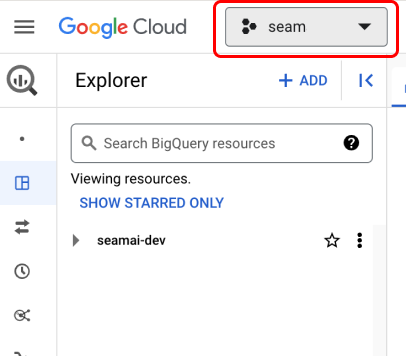
Your Project ID can be found in the BigQuery console as shown below. Copy this value to use when configuring your Seam connection.
 ### 2. Create a Service Account
You'll need to create a service account that Seam will use to access your BigQuery project and datasets.
**Step 1:** Create a new service account in your BigQuery project by following [Google's service account creation guide](https://cloud.google.com/iam/docs/service-accounts-create).
Ensure you create the service account in the same project where your dataset is located.
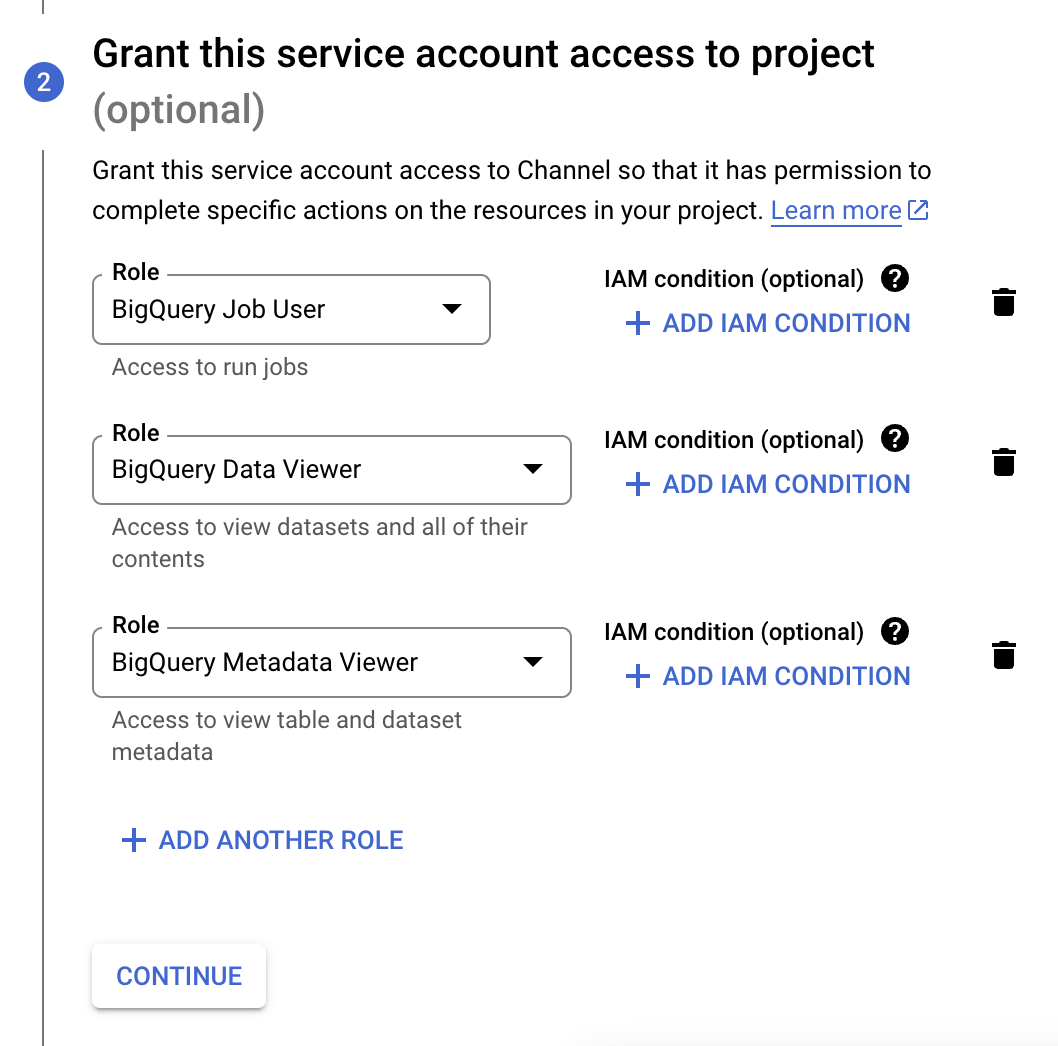
**Step 2:** Assign the following roles to the service account:
* `BigQuery Job User`
* `BigQuery Data Viewer`
* `BigQuery Metadata Viewer`
### 2. Create a Service Account
You'll need to create a service account that Seam will use to access your BigQuery project and datasets.
**Step 1:** Create a new service account in your BigQuery project by following [Google's service account creation guide](https://cloud.google.com/iam/docs/service-accounts-create).
Ensure you create the service account in the same project where your dataset is located.
**Step 2:** Assign the following roles to the service account:
* `BigQuery Job User`
* `BigQuery Data Viewer`
* `BigQuery Metadata Viewer`
 **Step 3:** Generate a JSON key file for the service account by following [Google's credential creation instructions](https://cloud.google.com/iam/docs/keys-create-delete). You'll upload this JSON file to Seam.
### 3. Specify a Dataset ID (Optional)
If you want to limit Seam's access to a specific dataset, provide the Dataset ID. You can find this in the BigQuery console as shown below.
**Step 3:** Generate a JSON key file for the service account by following [Google's credential creation instructions](https://cloud.google.com/iam/docs/keys-create-delete). You'll upload this JSON file to Seam.
### 3. Specify a Dataset ID (Optional)
If you want to limit Seam's access to a specific dataset, provide the Dataset ID. You can find this in the BigQuery console as shown below.
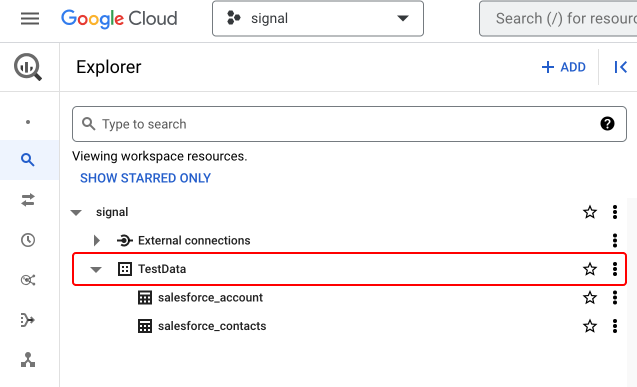 **Important:** The Dataset ID is different from your Project ID or table name.
If you don't specify a Dataset ID, Seam will connect to all datasets the service account has access to.
**Important:** The Dataset ID is different from your Project ID or table name.
If you don't specify a Dataset ID, Seam will connect to all datasets the service account has access to.