> ## Documentation Index
> Fetch the complete documentation index at: https://docs.getseam.ai/llms.txt
> Use this file to discover all available pages before exploring further.
# Marketo
> Quick guide to connecting Marketo as a Source and Destination.
We require three values to connect Marketo to Seam.
* Client ID
* Client Secret
* Web Service REST Endpoint
## Step 1: Obtain the Client ID and Secret
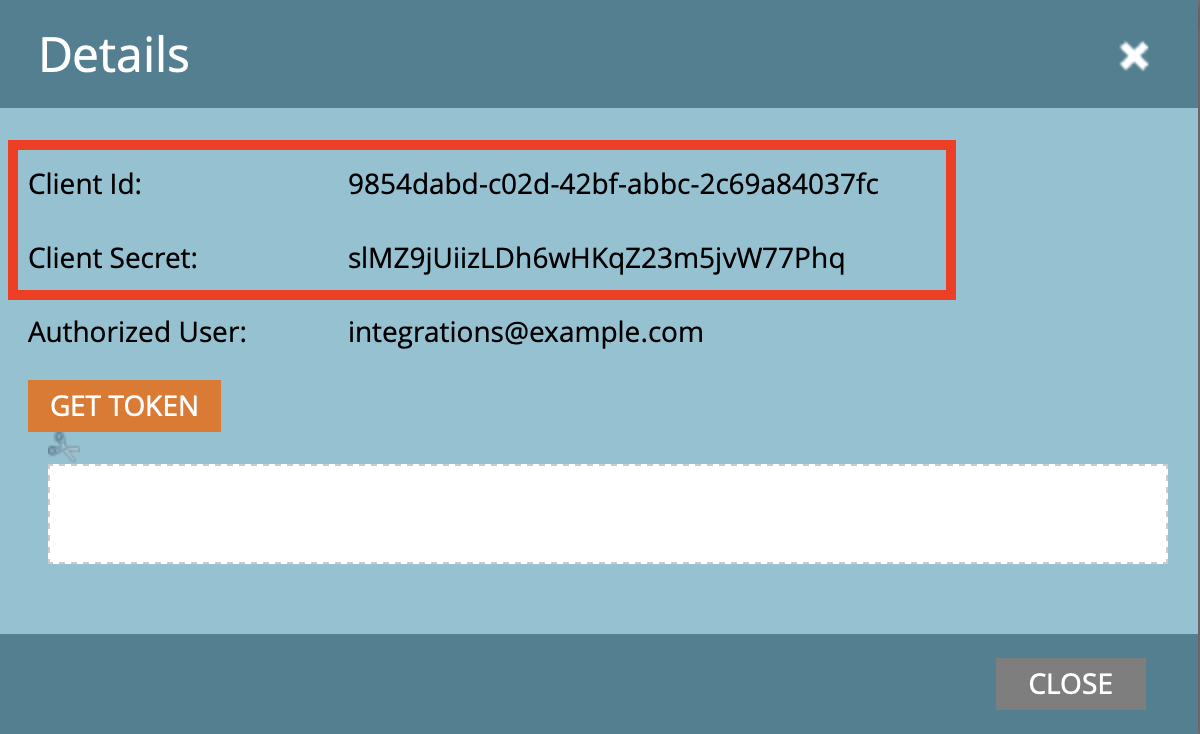
The Client ID and Client Secret can be obtained by logging into Marketo and going to **Admin** → **Integration** → **Launchpoint** then selecting a service and clicking **View Details**.
 ## Step 2: Obtain the Web Service REST Endpoint
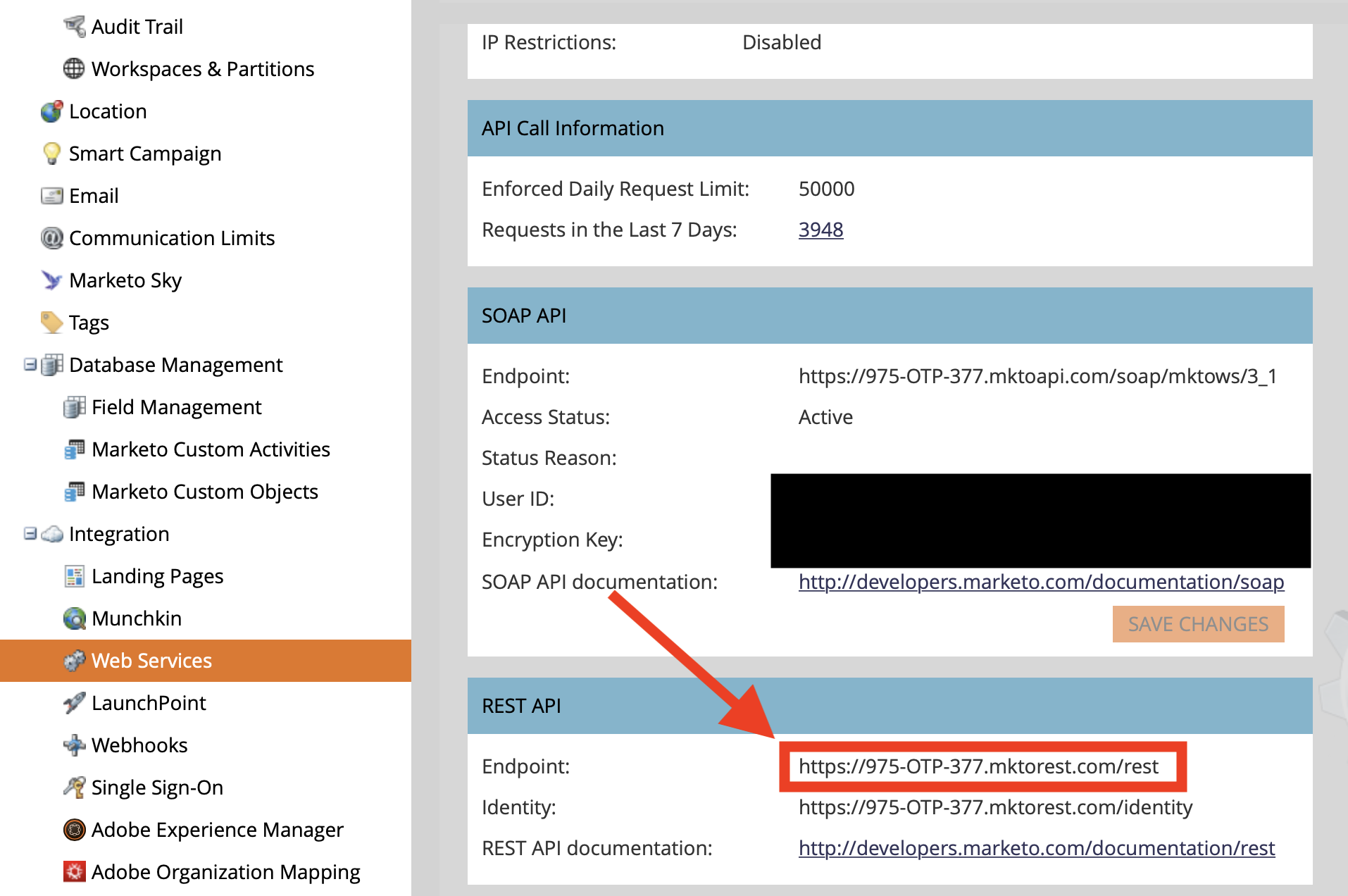
Remaining in Marketo, the Web Service REST Endpoint can be obtained by going to **Admin** → **Integration** → **Web Services**.
## Step 2: Obtain the Web Service REST Endpoint
Remaining in Marketo, the Web Service REST Endpoint can be obtained by going to **Admin** → **Integration** → **Web Services**.
 ## Step 3: Configure the connection in Seam
Navigate to Settings → Connections → Add connection, then enter the Client ID, Client Secret, and Web Services REST API Endpoint in Seam’s Marketo configuration fields and click **Save**.
## Step 3: Configure the connection in Seam
Navigate to Settings → Connections → Add connection, then enter the Client ID, Client Secret, and Web Services REST API Endpoint in Seam’s Marketo configuration fields and click **Save**.