> ## Documentation Index
> Fetch the complete documentation index at: https://docs.getseam.ai/llms.txt
> Use this file to discover all available pages before exploring further.
# Redshift
> Connect your Redshift data warehouse to Seam
## Prerequisites
**Firewall Configuration Required**
If your database is behind a firewall, you must allow connections from the following Seam IP addresses:
* 34.171.4.17
* 54.190.82.25
* 44.232.40.21
* 35.155.106.54
* 54.200.67.134
* 44.224.213.129
* 54.149.95.139
## Configuration Steps
### 1. Create a Seam User in Redshift
You'll need to create a dedicated read-only user for Seam to access your Redshift cluster. You can run these commands using:
* A SQL client connected to Redshift with admin credentials
* The AWS console's Redshift query editor
#### SQL Commands
Replace the following placeholders in the commands below:
* `` - The name of your Redshift schema
* `` - The name of your Redshift table (if using Option 2)
* `` - A randomly generated password (save this for later)
```sql theme={null}
-- Create a new user for Seam
CREATE USER seam_integration_user WITH PASSWORD '';
-- Grant access to the schema (always required)
GRANT USAGE ON SCHEMA TO seam_integration_user;
-- Option 1: Grant read-access to all tables in the schema
GRANT SELECT ON ALL TABLES IN SCHEMA TO seam_integration_user;
-- Option 2: Grant access to specific tables (repeat as necessary)
GRANT SELECT ON TABLE . TO seam_integration_user;
```
You can modify the `GRANT` statements to limit the scope of Seam's permissions. Choose Option 1 to grant access to all tables in a schema, or Option 2 to grant access only to specific tables.
### 2. Gather Connection Details
Navigate to the AWS console and locate your Redshift cluster information:
**AWS Console Path:** Redshift → Clusters → `[your-cluster-name]` → Properties
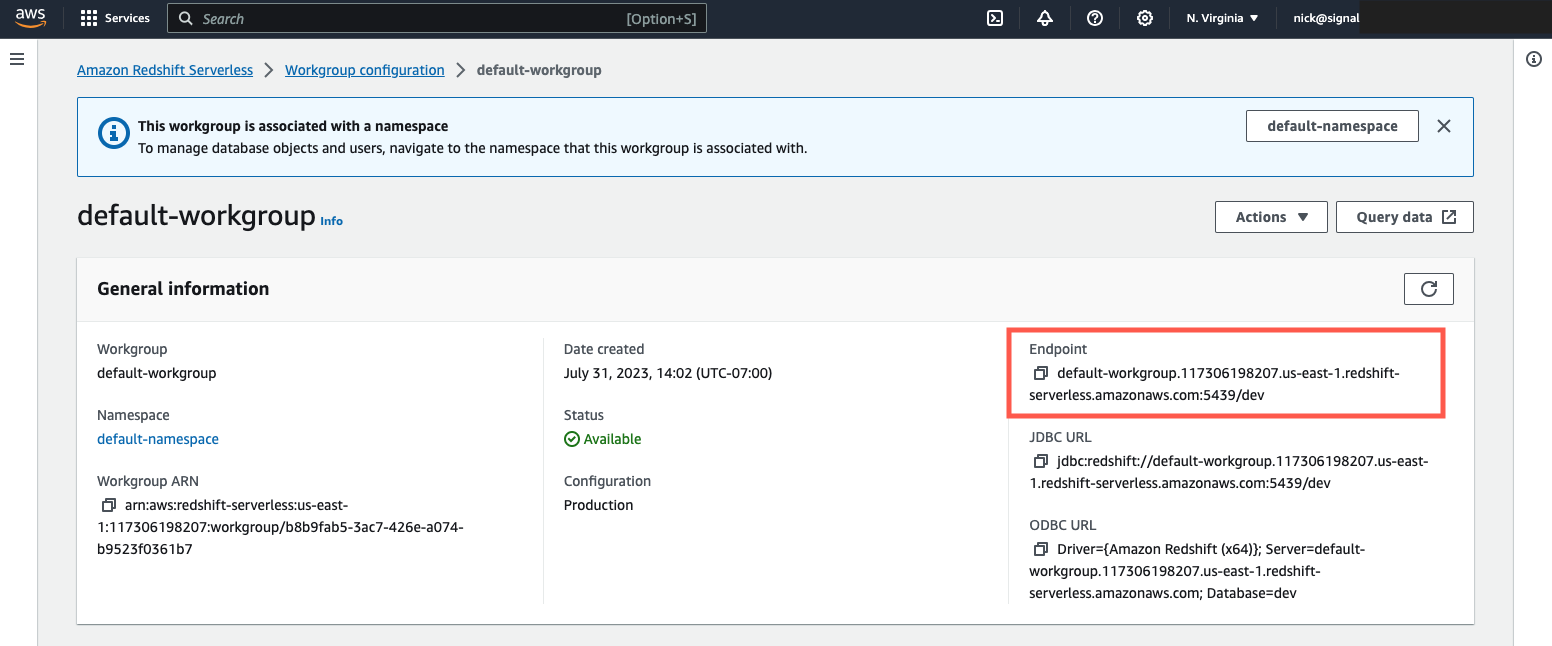 You'll need the following information to complete the Seam connection:
Redshift Cluster Endpoint
The username you created (e.g., `seam_integration_user`)
The password you set for the Seam user
Database name
Port (default: 5439)
You'll need the following information to complete the Seam connection:
Redshift Cluster Endpoint
The username you created (e.g., `seam_integration_user`)
The password you set for the Seam user
Database name
Port (default: 5439)