> ## Documentation Index
> Fetch the complete documentation index at: https://docs.getseam.ai/llms.txt
> Use this file to discover all available pages before exploring further.
# Routing queue
> Create reusable groups of sales reps for automated contact distribution
Routing queues are reusable groups of sales reps that determine how new contacts are assigned when Seam deploys them from plays.
Set up your queues before launching plays so contacts can be automatically routed to the right reps.
## Why Create Queues?
Instead of manually assigning contacts every time a play runs, queues let you define distribution rules once and reuse them across multiple plays.
**Common use cases:**
* **Round robin:** Distribute leads evenly across your SDR team
* **Regional teams:** Route contacts by geography (West Coast, EMEA, APAC)
* **Vertical specialization:** Assign contacts based on industry expertise
* **Account-based:** Route to specific account owners or account teams
## Creating a Queue
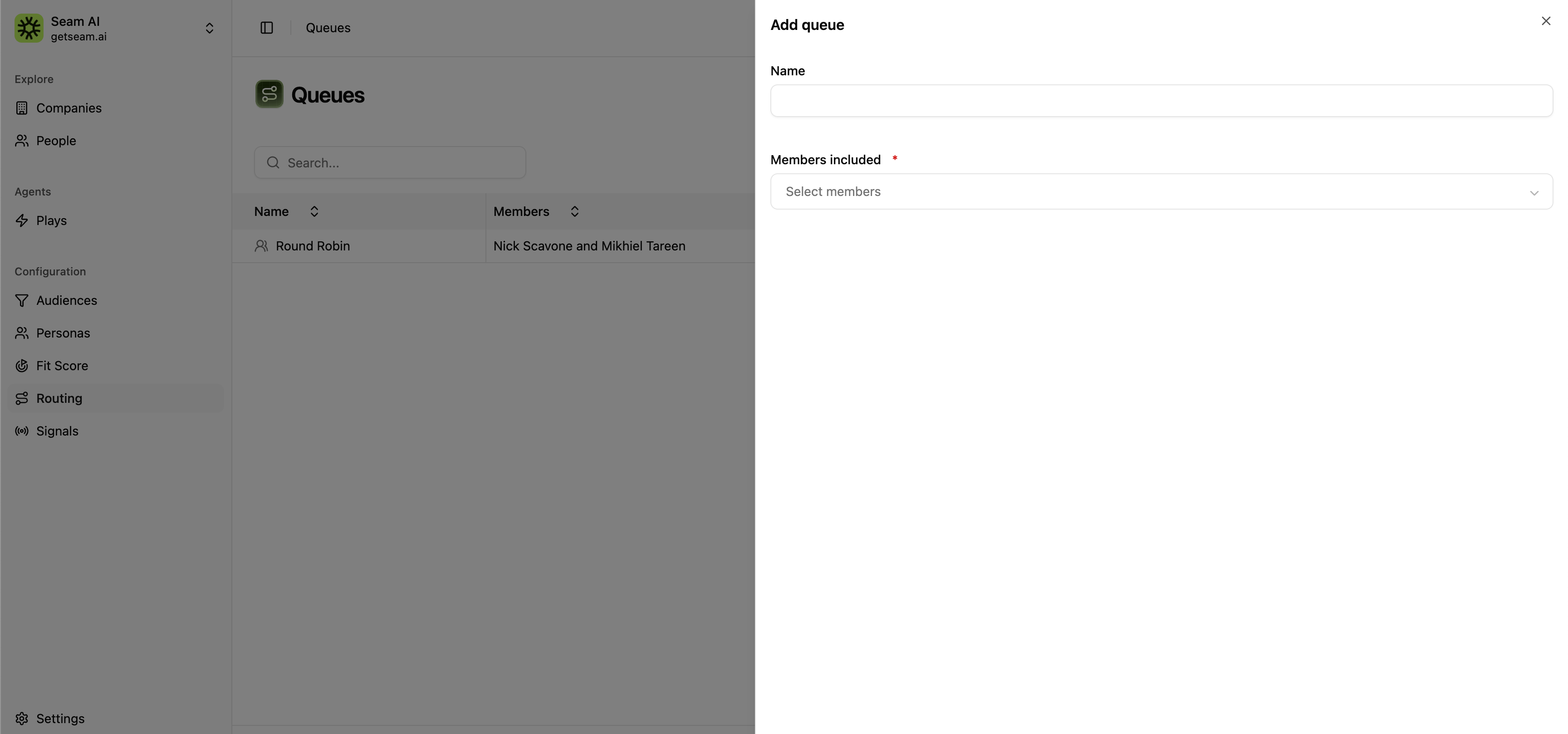
In Seam, go to **Routing** in the left sidebar.
Click **Add queue** to open the queue creation dialog.
Give your queue a descriptive name (e.g., "SDR Round Robin", "Enterprise AEs - West", "Healthcare Specialists").
Choose which team members should be included in this queue. These should match users from your connected CRM or sales engagement platform.
Click **Save** to create the queue. You can now use it in play routing configurations.
 ## Queue Examples
**Name:** SDR Round Robin
**Members:** All SDRs (evenly distributed)
**Use for:** High-volume inbound leads, general prospecting plays
**Queue 1:** East Coast Sales
**Queue 2:** West Coast Sales
**Queue 3:** EMEA Team
**Use for:** Territory-based routing in plays with geographic filters
**Queue 1:** Healthcare Specialists
**Queue 2:** Financial Services Team
**Queue 3:** SaaS/Tech Experts
**Use for:** Industry-specific plays targeting particular verticals
**Queue 1:** Enterprise AEs (accounts with 1000+ employees)
**Queue 2:** Mid-Market AEs (accounts with 200-999 employees)
**Queue 3:** SMB SDRs (accounts under 200 employees)
**Use for:** Plays filtered by company size or deal value
## Best Practices
Use clear naming conventions that explain the queue's purpose (who and when)
Review queues quarterly as team members join/leave or territories change
Balance queue sizes based on rep capacity, not just headcount
Create a small test play to verify contacts route correctly before scaling
**Start simple:** Create 1-2 basic queues (like a general SDR round robin) to get started. You can add more specialized queues as you launch additional plays.
## Queue Examples
**Name:** SDR Round Robin
**Members:** All SDRs (evenly distributed)
**Use for:** High-volume inbound leads, general prospecting plays
**Queue 1:** East Coast Sales
**Queue 2:** West Coast Sales
**Queue 3:** EMEA Team
**Use for:** Territory-based routing in plays with geographic filters
**Queue 1:** Healthcare Specialists
**Queue 2:** Financial Services Team
**Queue 3:** SaaS/Tech Experts
**Use for:** Industry-specific plays targeting particular verticals
**Queue 1:** Enterprise AEs (accounts with 1000+ employees)
**Queue 2:** Mid-Market AEs (accounts with 200-999 employees)
**Queue 3:** SMB SDRs (accounts under 200 employees)
**Use for:** Plays filtered by company size or deal value
## Best Practices
Use clear naming conventions that explain the queue's purpose (who and when)
Review queues quarterly as team members join/leave or territories change
Balance queue sizes based on rep capacity, not just headcount
Create a small test play to verify contacts route correctly before scaling
**Start simple:** Create 1-2 basic queues (like a general SDR round robin) to get started. You can add more specialized queues as you launch additional plays.