> ## Documentation Index
> Fetch the complete documentation index at: https://docs.getseam.ai/llms.txt
> Use this file to discover all available pages before exploring further.
# Setting intent keywords
> Track third-party intent signals to identify accounts actively researching your space
## Setting Up Bombora
### Step 1: Select Topics to Monitor
Navigate to **Settings → Seam Intent → Topics**. Choose up to 25 topics that align with your product, competitors, or buyer interests.
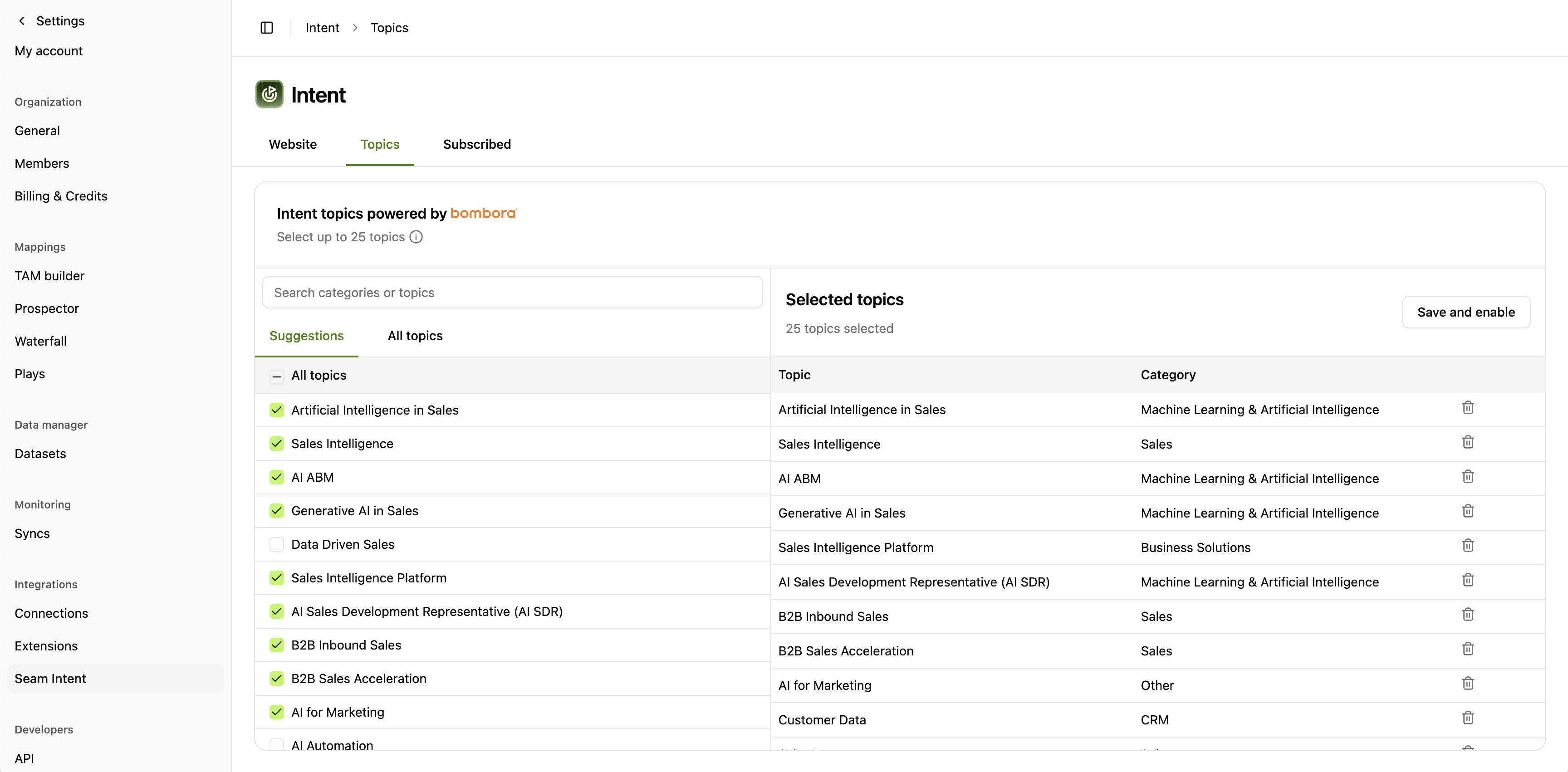 **Topic categories include:**
* Product categories (e.g., "Sales Intelligence", "AI ABM")
* Competitor names
* Use cases and pain points
* Industry-specific solutions
* Technology categories
Seam provides topic recommendations during onboarding based on your ICP and market. Start with suggested topics, then refine based on results.
### Step 2: Configure Intent Thresholds
Set thresholds for when Bombora signals should trigger actions:
* **Low Intent**: Surging on 1-2 topics
* **Medium Intent**: Surging on 3-5 topics
* **High Intent**: Surging on 6+ topics or critical topics
You can adjust these thresholds based on your sales cycle and ICP.
### Step 3: Enable in Scoring & Plays
Once configured, Bombora intent automatically:
* Contributes to account **intent scores**
* Triggers **automated plays** when thresholds are met
* Appears in **audience filters** and segments
* Syncs to **Salesforce** for rep visibility
**Topic categories include:**
* Product categories (e.g., "Sales Intelligence", "AI ABM")
* Competitor names
* Use cases and pain points
* Industry-specific solutions
* Technology categories
Seam provides topic recommendations during onboarding based on your ICP and market. Start with suggested topics, then refine based on results.
### Step 2: Configure Intent Thresholds
Set thresholds for when Bombora signals should trigger actions:
* **Low Intent**: Surging on 1-2 topics
* **Medium Intent**: Surging on 3-5 topics
* **High Intent**: Surging on 6+ topics or critical topics
You can adjust these thresholds based on your sales cycle and ICP.
### Step 3: Enable in Scoring & Plays
Once configured, Bombora intent automatically:
* Contributes to account **intent scores**
* Triggers **automated plays** when thresholds are met
* Appears in **audience filters** and segments
* Syncs to **Salesforce** for rep visibility