

Prerequisites
Required Information
To connect your BigQuery warehouse to Seam, you’ll need to provide:- BigQuery Project ID (required)
- Service Account JSON (required)
- Dataset ID (optional)
Configuration Steps
1. Locate Your BigQuery Project ID
Your Project ID can be found in the BigQuery console as shown below. Copy this value to use when configuring your Seam connection.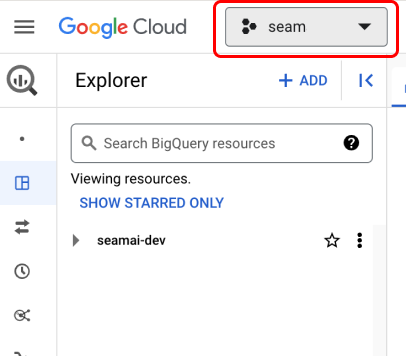
2. Create a Service Account
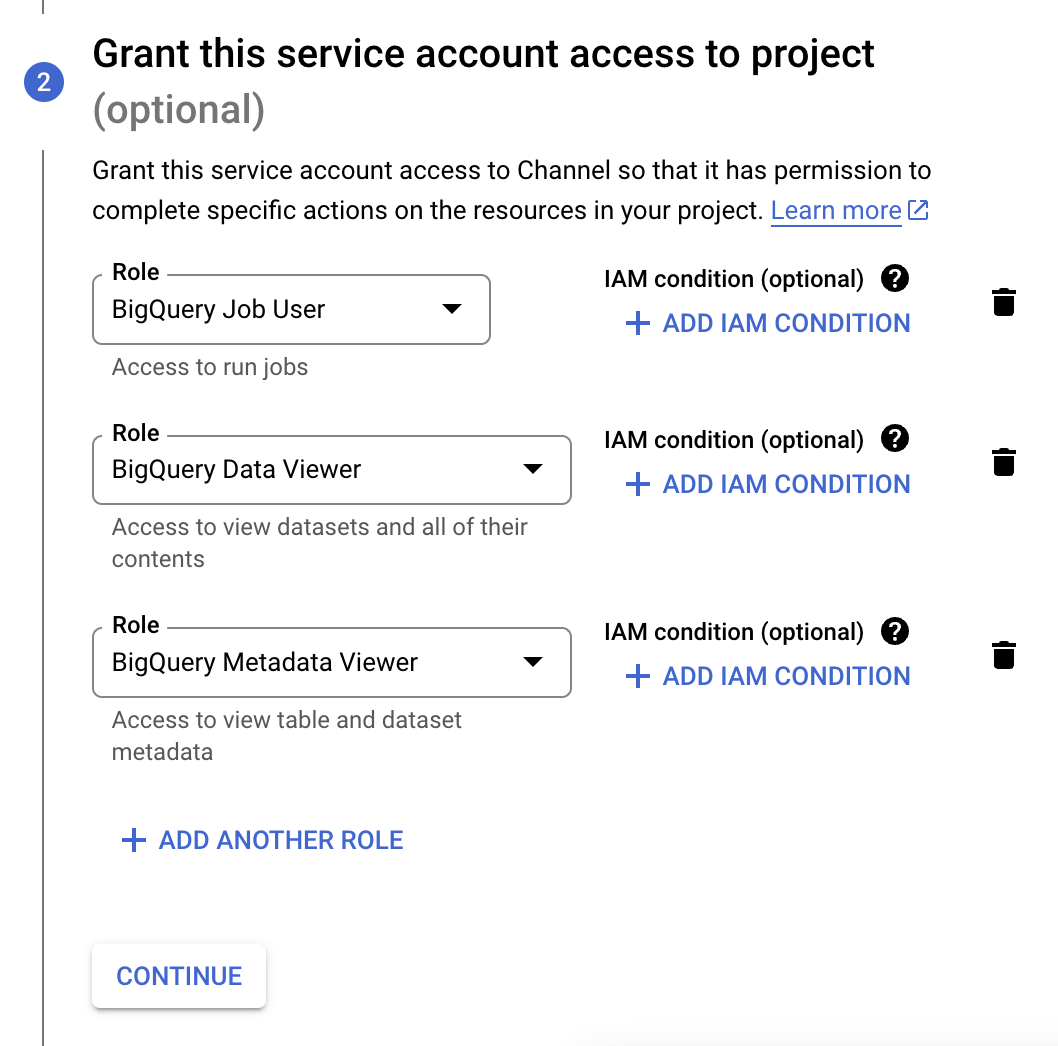
You’ll need to create a service account that Seam will use to access your BigQuery project and datasets. Step 1: Create a new service account in your BigQuery project by following Google’s service account creation guide.Ensure you create the service account in the same project where your dataset is located.
BigQuery Job UserBigQuery Data ViewerBigQuery Metadata Viewer
3. Specify a Dataset ID (Optional)
If you want to limit Seam’s access to a specific dataset, provide the Dataset ID. You can find this in the BigQuery console as shown below.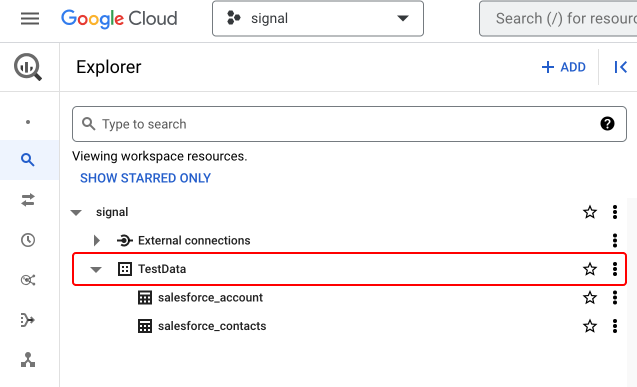
Important: The Dataset ID is different from your Project ID or table name.If you don’t specify a Dataset ID, Seam will connect to all datasets the service account has access to.