Prerequisites
Configuration Steps
1. Create a Seam User in Redshift
You’ll need to create a dedicated read-only user for Seam to access your Redshift cluster. You can run these commands using:- A SQL client connected to Redshift with admin credentials
- The AWS console’s Redshift query editor
SQL Commands
Replace the following placeholders in the commands below:<schema>- The name of your Redshift schema<table>- The name of your Redshift table (if using Option 2)<password>- A randomly generated password (save this for later)
You can modify the
GRANT statements to limit the scope of Seam’s permissions. Choose Option 1 to grant access to all tables in a schema, or Option 2 to grant access only to specific tables.2. Gather Connection Details
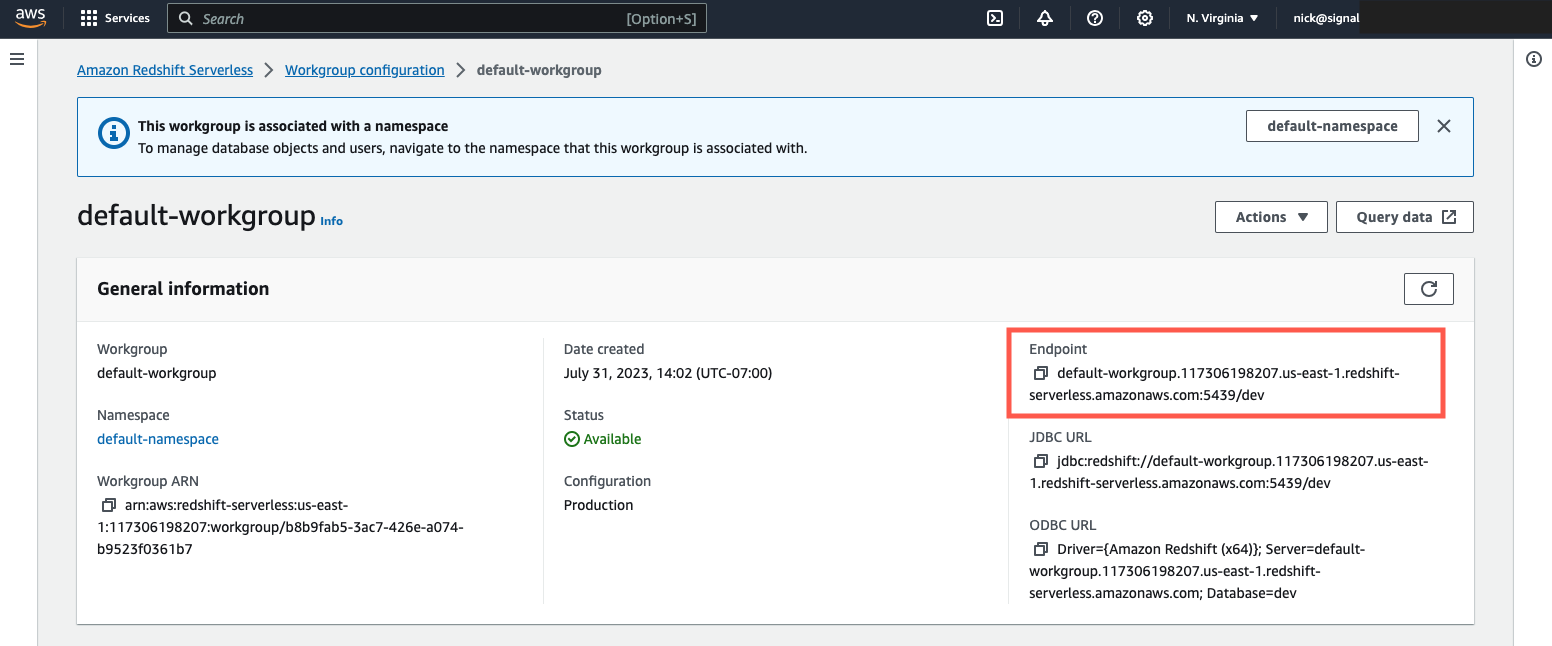
Navigate to the AWS console and locate your Redshift cluster information: AWS Console Path: Redshift → Clusters →[your-cluster-name] → Properties
string
required
Redshift Cluster Endpoint
string
required
The username you created (e.g.,
seam_integration_user)string
required
The password you set for the Seam user
string
required
Database name
number
default:"5439"
Port (default: 5439)